
Log in to the dashboard
Sign in through the official platform and learn where to start after login.
Platform checked: 2026-11-12 · Guide updated: 2026-11-13Steps have been checked against the live platform. Screenshots are cropped to protect account and customer data.
Before you start
- Have an activated EPOST account and its password ready.
Step-by-step instructions
- 01
Open the official platform
Visit https://app.e-post.com.hk/. The website header and footer login links also open the platform in a new tab.
- 02
Enter Username and Password
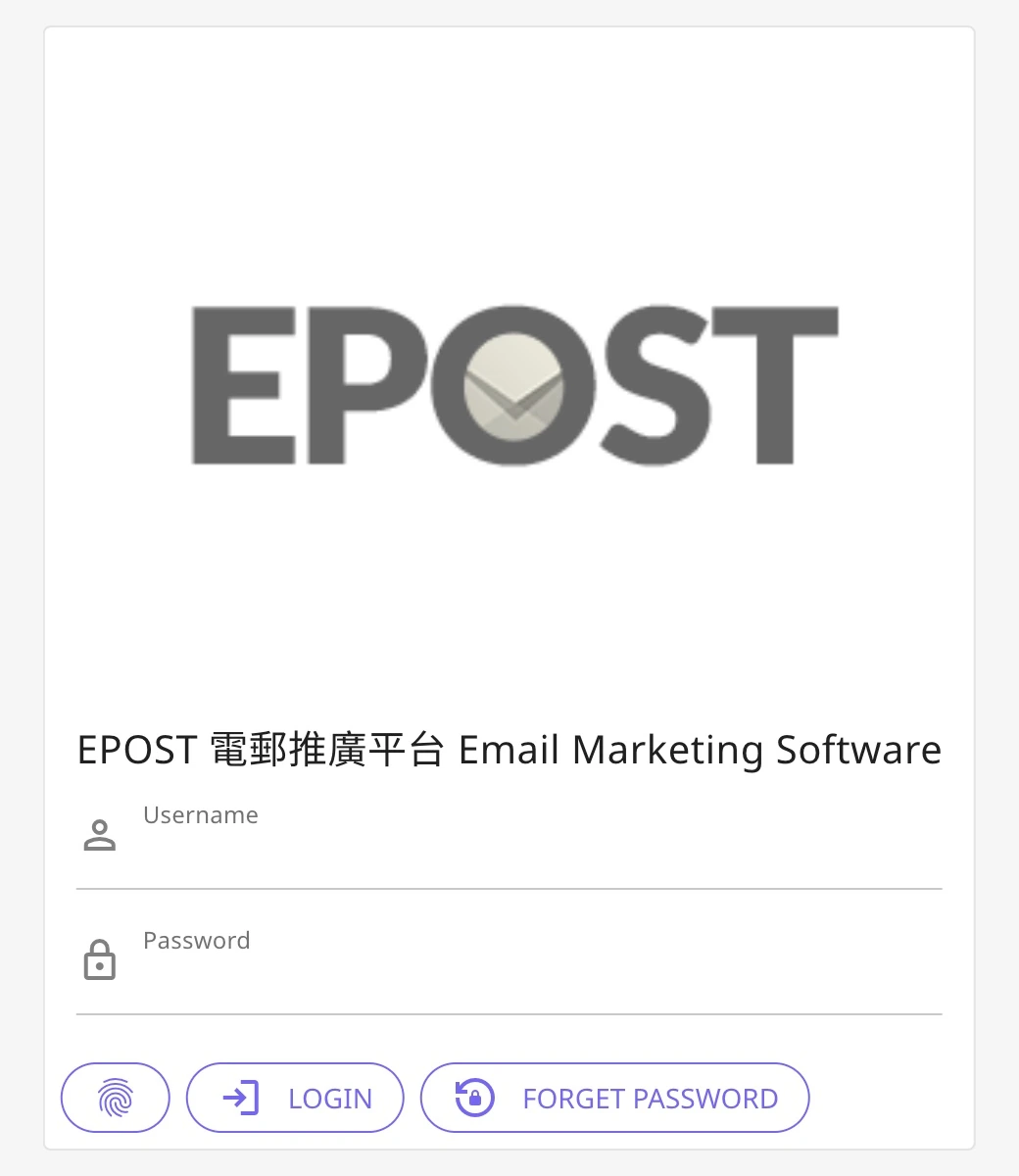
Enter your account name in Username and your password in Password, then select LOGIN. These fields belong to the platform, not the website enquiry form.
 Open full-size screenshot
Username, Password, LOGIN and password assistance on the platform login page - 03
Check that the dashboard has opened
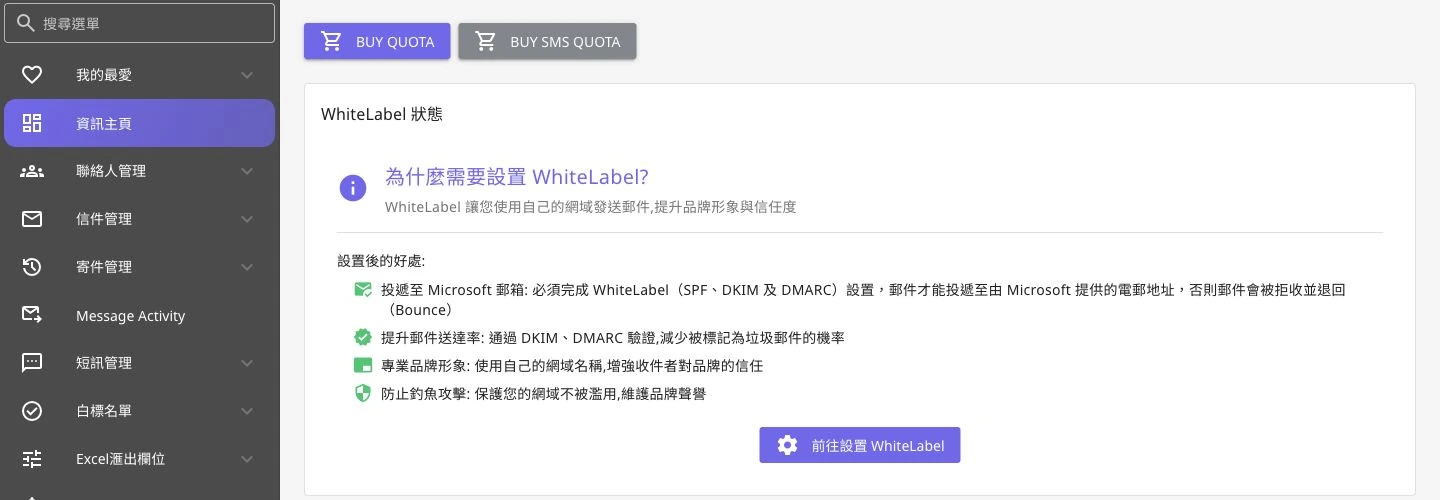
After login, the left navigation and areas such as WhiteLabel status, Email Quota, statistics and Schedule Calendar appear. Use the navigation to manage contacts and letters.
 Open full-size screenshot
Dashboard navigation and WhiteLabel guidance after login - 04
If you cannot sign in
Select FORGET PASSWORD on the login page and follow the platform instructions. If the account is inactive or the details still fail, give support your username and the error message, without sharing your password.
Notes and troubleshooting
- Never include your password in a public enquiry form or tutorial screenshot.
Need a little more help?
Tell us what you're experiencing.