
Using Email Builder
Build content with the current drag-and-drop editor and preview it on different devices.
Platform checked: 2026-11-12 · Guide updated: 2026-11-13Steps have been checked against the live platform. Screenshots are cropped to protect account and customer data.
Before you start
- Choose Start from Blank on Add Letter and keep the original letter tab open.
Step-by-step instructions
- 01
Find your way around the editor
The editor has Save at the top and Undo, Redo, Desktop, Mobile and Preview in its toolbar. The right side provides Content, Blocks, Body, Images and Uploads, rather than the older Padding / Style / Content tabs.
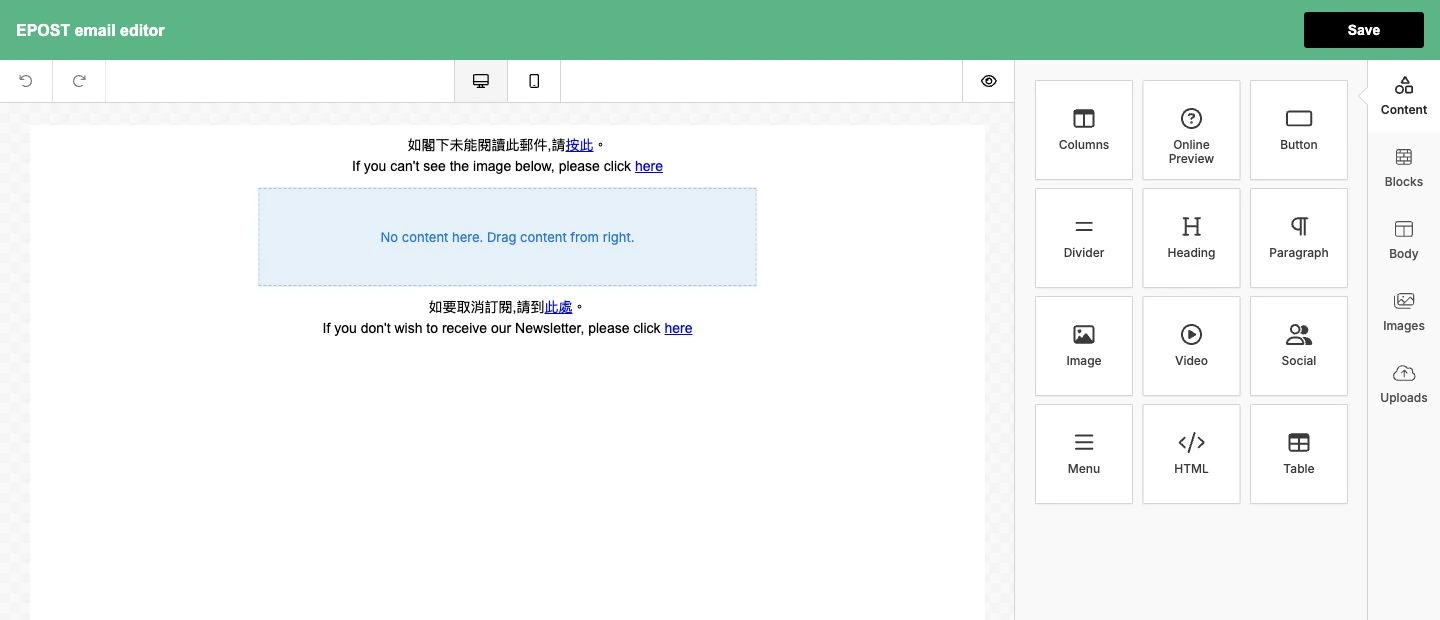 Open full-size screenshot
EPOST Email Builder content modules and Save - 02
Drag in a content module
Choose modules such as Heading, Paragraph, Image and Button under Content and drag them into the central canvas. Start with a simple structure, then add copy, images and action buttons.
- 03
Edit text and links
Select an inserted module. Paragraph offers font, bold, lists and Insert/Edit Link in its text toolbar, with Font Size, Color, Text Align, Line Height and Links on the right.
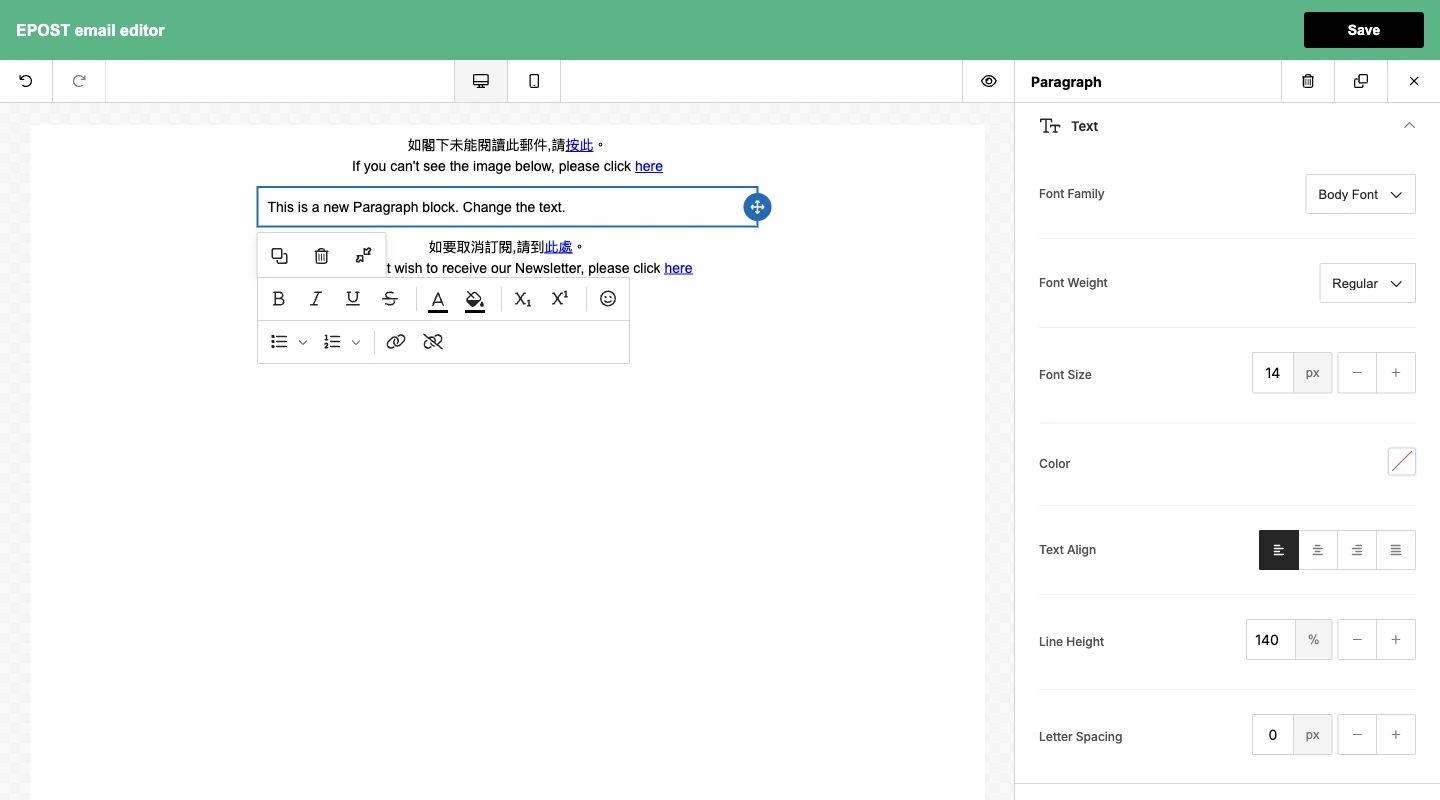 Open full-size screenshot
Paragraph text, links and Container Padding settings - 04
Adjust spacing and modules
Use Container Padding under General to adjust spacing. Delete and Duplicate appear at the top of module settings. Check the selected block before moving or deleting content, and retain the system online-preview and unsubscribe content.
- 05
Preview different devices
Select Preview to switch between Desktop, Tablet and Mobile and inspect dark mode. Use Exit Preview to return. Check images, buttons and linked text for overflow.
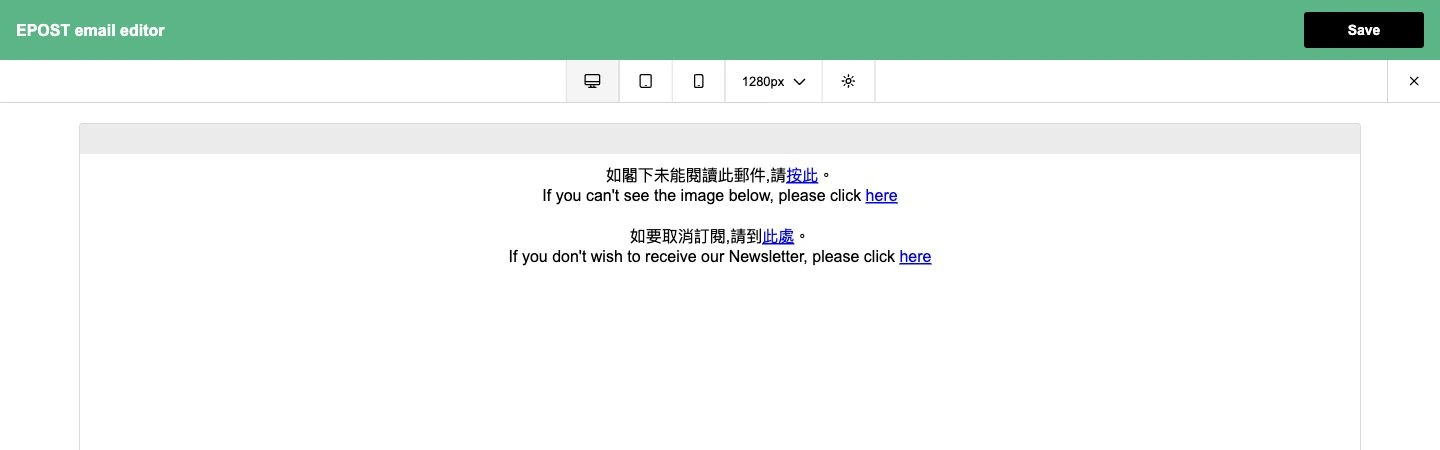 Open full-size screenshot
Desktop, Tablet and Mobile preview in the editor - 06
Save and return to the form
Select Save at the top right, return to the original letter tab, then check the name, subject and content and select Complete. Closing the editor alone does not complete the original letter form.
Notes and troubleshooting
- The paragraph shown is an unsaved demonstration. No existing letter was changed and no email was sent.
Need a little more help?
Tell us what you're experiencing.